WHAT IS A NETWORK ADDRESS?
Network Address

Network Address
A network address is an identifier for a node or host on a telecommunications network. Network addresses are designed to be unique identifiers across the network, although some networks allow for local, private addresses or locally administeredaddresses that may not be unique.
EXAMPLE OF NETWORK ADDRESS

IP VERSIONS
IPv4-Internet Protocol Version 4 (IPv4) is the fourth revision of theInternet Protocol and a widely used protocol in data communication over different kinds of networks. IPv4 is a connectionless protocol used in packet-switched layer networks, such as Ethernet.
:max_bytes(150000):strip_icc()/ipv4-5bdcc3d4c9e77c0051c98cca.png)
IPv6-is a set of specifications from the Internet Engineering Task Force (IETF) that's essentially an upgrade of IP version 4 (IPv4).

BINARY DIGIT

-Decimal to binary conversion is an important task to understand in IP addressing and Subnetting. IP addressing is a core functionality of networking today. The knowledge of how to assign an IP address, or determine the network or host ID via a subnet, is vital to any good network engineer. Having a good, solid understanding of the simple things makes more complex tasks easier. Here are steps on how to convert a decimal IP address to its binary form, without memorization.

A bit (short for binary digit) is the smallest unit of data in a computer. A bit has a single binary value, either 0 or 1. Although computers usually provide instructions that can test and manipulate bits, they generally are designed to store data and execute instructions in bit multiples called bytes.
CLASSES OF IP ADDRESS

Class D - Use for MULTICAST
Class E - reserved for FUTURE or EXPERIMENTAL PURPOSES.
STEPS IN CREATING IP ADDRESS
1.Right click My Network Places
2.Click Properties

3.Right click Local Area Connection
4.Click Properties

5.Click TCP/IP
6.Click Properties
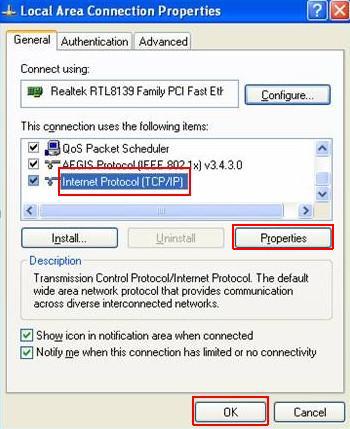
7.Click OK
STEPS IN IP CONFIGURATION
1.Click Start button

2.Click Run

3.Type CMD
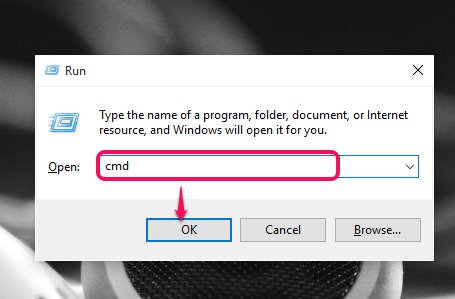
4.Type ipconfig
5.Type ping [IP ADDRESS]

